Hogyan hozz létre gyorsan QR-kódot PDF linkekhez
Eureka Seven
How to Create a QR Code for PDF Links Fast
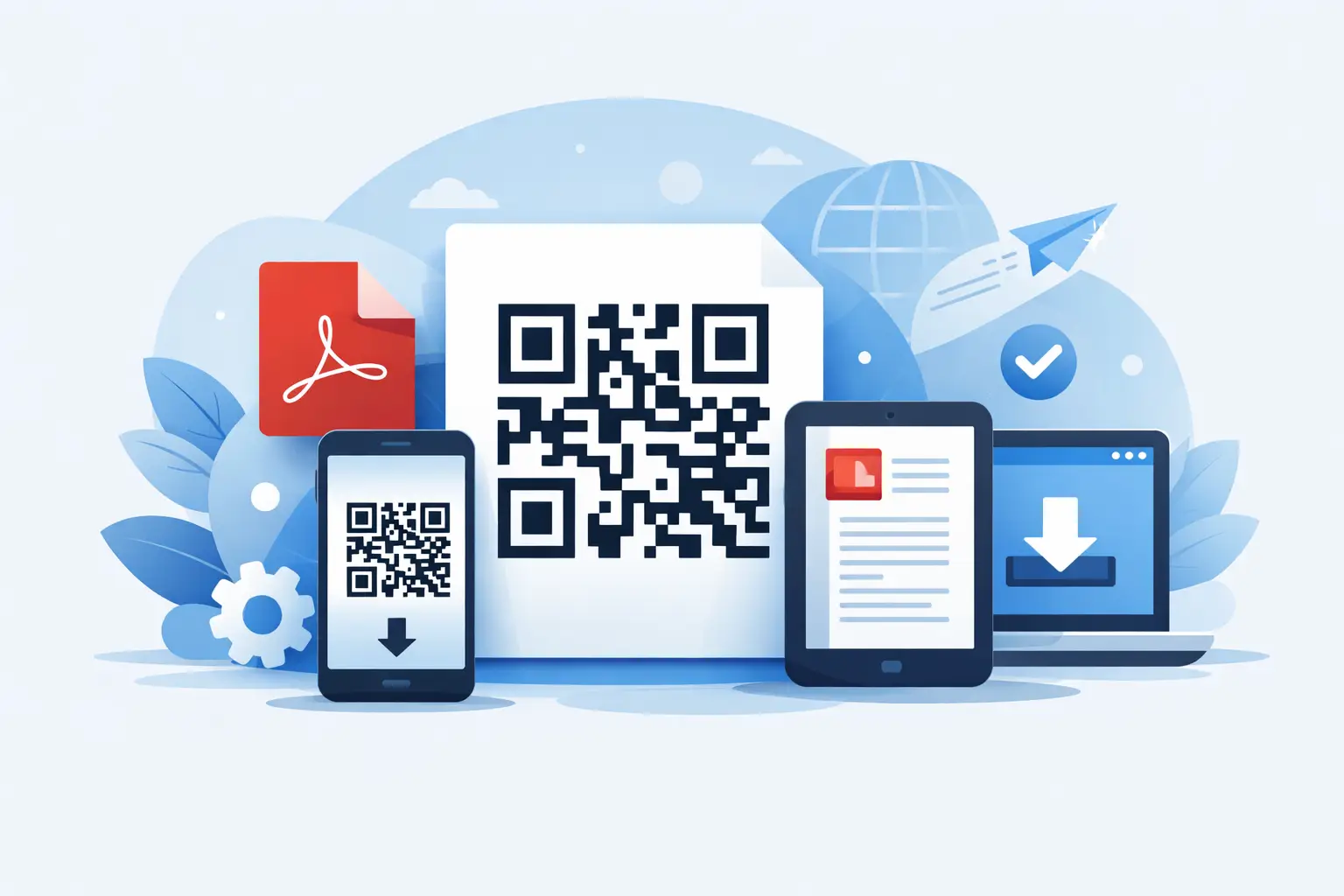
A printed flyer has limited room. A PDF can hold the full price list, event schedule, product guide, portfolio, or application form. A qr code for pdf links connects the two: someone scans the code with a phone and opens the file without typing a long web address.
That simple step is useful anywhere people need more information than a sign, label, postcard, or handout can provide. The code does not place the PDF inside the square itself. It sends the scanner to the web address where your PDF is hosted. Getting that destination right makes the experience quick for your audience and easy to manage for you.
When a QR Code for PDF Links Makes Sense
When a QR Code for PDF Links Makes Sense
PDF QR codes work best when the document is useful at the moment someone sees the code. A restaurant can place one on a table tent for a full menu. A real estate agent can add one to a property sign for a feature sheet. A contractor can use one on a leave-behind card for warranty details, service packages, or a project gallery.
They also solve a common print problem: information changes, but printed materials are already out in the world. If your QR code points to a web address you control, you can replace the file at that same address when you update a price sheet, catalog, or event program. The printed code can keep working while the document behind it changes.
This approach is not always the best fit. If the information is only a sentence or two, put it directly on the printed piece. If visitors need to buy, book, fill out a form, or browse several pages, linking the QR code to a mobile-friendly webpage may be better than sending them to a PDF. A PDF is most useful when it is a document people may want to read, save, print, or share.
Prepare the PDF Before You Create the Code
Prepare the PDF Before You Create the Code
A working link is only part of the job. The PDF should be comfortable to open on a phone, where most scans happen. Before you generate a code, check the file as if you were a customer standing in a parking lot, at a counter, or in a store aisle.
Keep the file size reasonable. A large, image-heavy PDF can take too long to load on cellular service, which gives people a reason to close it. Compress oversized images when possible, and remove pages that do not help the reader take the next step.
Make the first page useful. Put the document title, key details, and a clear contact method near the top. A scanner should not have to scroll through a cover page just to find out whether the file is relevant. For menus, guides, and catalogs, readable type and a simple layout matter more than fitting every detail into a dense page.
Use a filename that makes sense if someone downloads it. “Spring-2026-service-pricing.pdf” is more helpful than “final-v7.pdf.” Also make sure the document is available to anyone with the link. A PDF stored behind a login, a permission request, or a private account setting will create a dead end for the people you want to reach.
How to Make a QR Code for PDF Links
How to Make a QR Code for PDF Links
Start by uploading your PDF to a reliable online location and copying its direct share link. Open that link in a private browser window or on a phone that is not signed in to your account. If it opens there, it should be accessible to your audience. If it does not, adjust the file-sharing settings before moving forward.
Next, paste the PDF link into a QR code generator. QRColor can turn that link into a scannable QR code in a few steps, so you can download an image for print or digital use. The code itself should point to the complete web address, including the beginning of the address. A missing character can send scanners nowhere.
Choose a design that favors scanning over decoration. A standard dark code on a light background is the safest option. If you use color, keep strong contrast between the code and its background. Avoid light gray, low-contrast brand colors, busy photos behind the code, or heavy edits that remove too much of the code pattern.
Add a short instruction beside the code. “Scan for the full menu,” “Scan to view the product guide,” or “Scan for installation instructions” tells people what they will get. That small line can improve scan rates because it removes uncertainty. A code with no context may be ignored, especially on crowded packaging or signage.
Finally, download a format that matches where you will use it. A high-resolution PNG is useful for many digital and print jobs. For large-format printing, such as banners, window signs, or trade show displays, a vector file is often the better choice because it stays sharp when enlarged. Ask your printer which file type they prefer before finalizing the layout.
Test the Code in Real Conditions
Do not rely on a preview alone. Scan the finished code with more than one phone if possible. Test it after it has been placed into the actual design, not only when it is sitting alone on a white screen.
Check the scan from the distance people will realistically use. A code on a business card needs to work up close. A code on a poster needs to work from farther away. Test it in normal indoor light and, if it will be displayed outside, in daylight. Glare on glossy paper, a wrinkled label, or a code placed too close to a fold can affect scanning.
After the scan, check the destination experience. Does the PDF open quickly? Is the first page readable? Does it show the current version? Does the contact information work? These details matter more than a custom QR color or a decorative frame.
Size and Placement Matter
Size and Placement Matter
A QR code needs enough physical space for a phone camera to read it. For small print pieces, a code around 1 inch by 1 inch is often a practical starting point. Use a larger size for signs, posters, vehicle graphics, and any placement where people scan from a distance. The farther away the scanner stands, the larger the code should be.
Leave clear space around all four sides. This blank border is called the quiet zone, and it helps cameras identify the code. Do not crowd it with text, borders, logos, or design elements. A code may look integrated into the design while becoming harder to scan.
Placement should match the reader’s behavior. Put a menu code where customers can comfortably hold a phone over it. Put a product manual code near the item or on the packaging where it will still be visible after purchase. For a brochure, avoid the inside fold and the far edge where fingers may cover it. On screens, give the code enough room and avoid making it so small that users need to zoom.
Avoid the Problems That Waste Scans
Avoid the Problems That Waste Scans
The most common issue is linking to a file that later moves, gets renamed, or loses public access. Before printing hundreds of pieces, decide where the PDF will live and who can update it. If your website hosts the file, keep its address stable. If you replace the file, preserve the same link whenever possible.
Another issue is using the wrong destination. A general folder link can force people to search for the right document. A link to a webpage with several clicks before the PDF creates friction. Send scanners as close as possible to the information you promised.
Some businesses also try to make a code too small or too stylized. Brand consistency is valuable, but a code that will not scan does not support the brand. Use your colors in the surrounding design, headline, and call to action. Let the QR code stay clear and functional.
If you expect a document to change often, include a date or version number inside the PDF. A customer who saves the file will know whether they have current information. For time-sensitive materials such as event programs, seasonal menus, and promotional offers, state an end date when appropriate instead of leaving readers to guess.
A good PDF QR code earns its space by answering the next question a customer has. Make that answer easy to open, easy to read, and worth the scan. When the printed message and the linked document work together, a small square can carry far more useful information than the page around it.