Restaurant Menu QR Example That Guests Can Use

Eureka Seven

Restaurant Menu QR Example That Guests Can Use

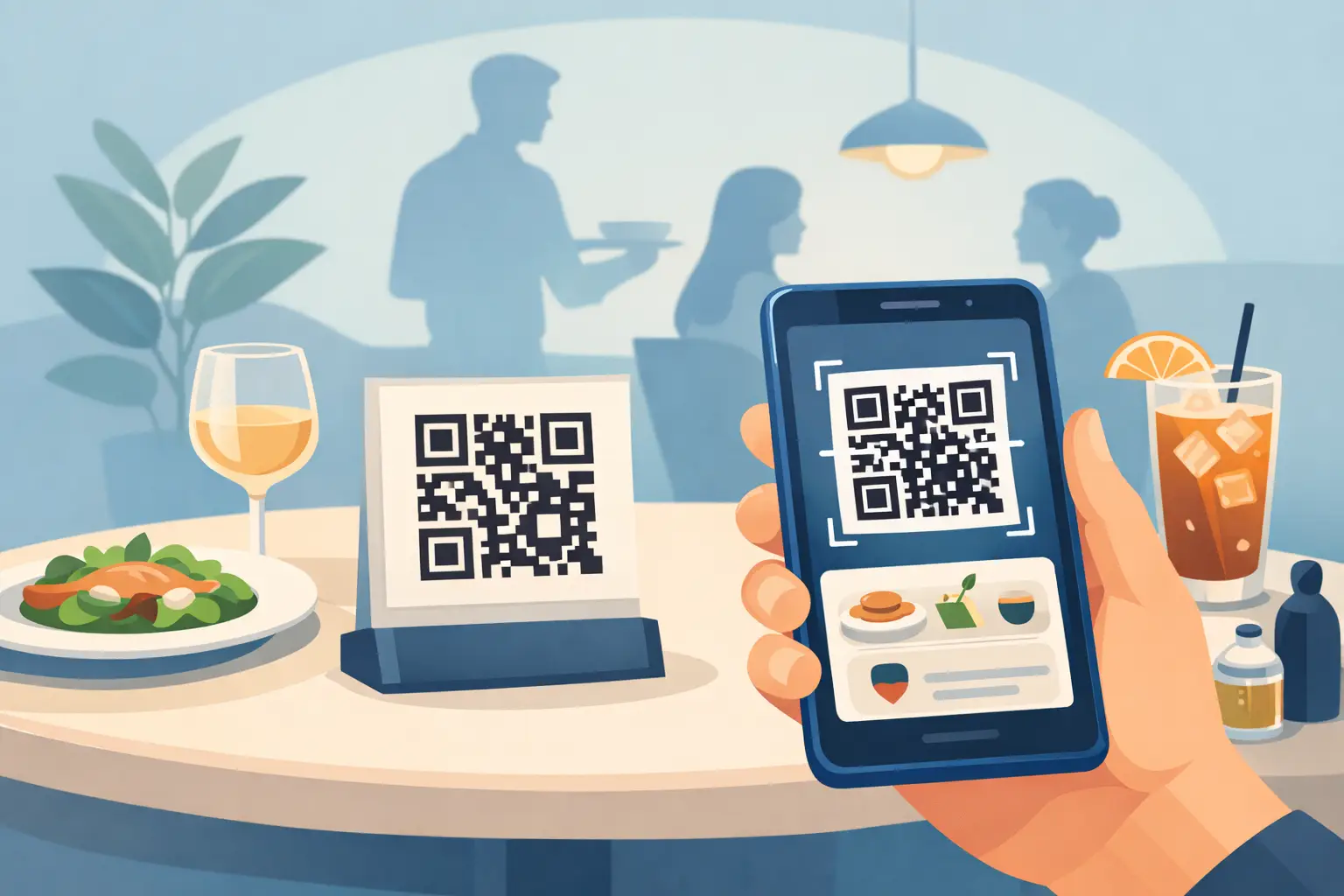
A guest sits down, opens their phone camera, and scans the code on the table. A good restaurant menu QR example gets them to the current menu in seconds - not to a confusing homepage, a broken PDF, or a page that is hard to read on a phone.

For restaurants, the QR code itself is simple. The real work is choosing the right destination, making the code easy to scan, and placing it where customers will actually use it. Done well, a menu QR code reduces printing updates and gives guests quick access to what they need.

What a Restaurant Menu QR Example Should Do

What a Restaurant Menu QR Example Should Do

A restaurant menu QR code should take guests directly to a mobile-friendly menu. That sounds obvious, but many codes lead to a general website where the guest has to search for the menu, choose a location, or zoom in on a document. Each extra step creates friction at the table.

Here is a practical example. A neighborhood restaurant called River Street Grill has seasonal specials, a lunch menu, and a dinner menu. It places one QR code on every table tent with a short instruction: “Scan to view today’s menu.” The code opens a single page with the restaurant name, the current day’s menu, prices, dietary notes, and a clear way to switch between lunch and dinner when needed.

The page does not require an app, account, email address, or download. It loads quickly over cellular service and is readable on a standard phone screen. That is the experience to aim for.

A QR code is an access point, not the menu experience itself. Guests will judge the whole process, from the moment they notice the sign to the moment they find an item and price.

Start With the Right Menu Destination

Start With the Right Menu Destination

Before creating a code, decide exactly where it should send people. For most restaurants, the best choice is a dedicated menu page on the restaurant website. It gives you a stable place to update items, prices, hours, and special offerings without replacing printed QR materials.

A PDF can work for a small, fixed menu, but it has drawbacks. PDFs may load slowly on mobile data, force guests to pinch and zoom, and become outdated when prices change. If a PDF is your only option, format it for phone screens with large text and a simple vertical layout. Do not upload the same letter-size print menu and expect it to work well on a phone.

A third-party ordering page can also be the right destination if your primary goal is takeout or delivery. For an in-restaurant table code, however, sending guests straight to an ordering platform may be less useful than showing a clear dine-in menu. It depends on how your restaurant operates.

If you have multiple locations, avoid one generic code that makes every guest choose a city or address. Use a location-specific menu page and a location-specific QR code. This prevents guests from seeing the wrong prices, hours, or availability.

Keep the mobile page simple

The menu page should open with the information guests need first: the restaurant name, menu sections, item names, descriptions, and prices. Large readable text matters more than visual effects. Photos can help with signature items, but too many large images can slow down the page.

Also include allergen information or a clear note explaining how guests can ask about ingredients. Digital menus make updates easier, but they do not replace staff knowledge or food-safety practices.

Build the QR Code for Real-World Scanning

Build the QR Code for Real-World Scanning

A code that looks good on a computer screen can fail on a glossy table tent or a dimly lit patio. Use a high-contrast design: a dark code on a light background is the safest choice. Black on white remains reliable for nearly every use case.

Color can fit your branding, but avoid low-contrast combinations such as pale yellow on white, light gray on silver, or dark red on black. The scanner needs a clear difference between the code and its background. If you add a logo or decorative frame, keep the code itself large and uncluttered.

Leave clear space around all sides of the QR code. That empty border helps phone cameras identify it. Do not place it tight against text, patterns, borders, or photos.

Size matters, too. On a table tent, menu cover, window sign, or countertop display, make the code large enough to scan at a comfortable distance. A tiny code may technically work, but it asks guests to lean in and hold their phone still. That is not a good table experience.

Before printing a batch, test the code with several phones. Try it under normal restaurant lighting, near a window, and in lower light. Test both iPhone and Android cameras, and make sure the destination loads without being logged into your own website account.

Where to Put a Restaurant Menu QR Code

Where to Put a Restaurant Menu QR Code

Table tents are the most common option because the code is in front of seated guests at the moment they need the menu. A small stand or sticker can work, but it should not replace every printed menu automatically. Some guests prefer paper menus, and some may not have a charged smartphone or reliable data service.

A mixed approach is usually better: place the QR code on tables and offer a small number of clean printed menus on request. This is more accommodating and prevents staff from handling a simple request as a problem.

Other useful placements include the host stand, waiting area, front window, takeout counter, receipts, and outdoor signage. Each placement can serve a different purpose. A code in the waiting area helps guests browse before they sit. A code on a takeout bag can lead to the full menu for a future order.

Use clear, specific instructions next to the code. “Scan for menu” is fine. “Scan for today’s lunch menu” is better when the context matters. If the code leads to ordering, say that plainly. Guests should know what will happen before they scan.

A Better Restaurant Menu QR Example: One Code, One Job

A Better Restaurant Menu QR Example: One Code, One Job

The strongest QR menus usually follow one rule: one code should have one clear job.

For example, a dine-in table code can open the dine-in menu. A separate counter code can open online ordering. A code on a catering card can lead to catering packages and an inquiry form. Using the same code for every purpose may sound efficient, but it can send customers to the wrong page at the wrong time.

This also makes performance easier to review. If you use different QR codes for tables, window signs, and takeout packaging, you can see which physical placements are actually driving visits. You do not need a complicated campaign system to make smarter decisions. Even a few separate codes tied to clear destinations can show what customers use.

QRColor can create a scannable code from the exact menu URL you want guests to visit. The key is to finalize and test that URL before you print the code across tables, signs, or packaging.

Avoid these common problems

The most common issue is a code that leads to an old menu. Set a simple process for menu changes. When you update prices or remove an item, check the digital menu at the same time. If the code points to a page you control, you can make those changes without reprinting the QR code.

Another problem is a code printed over a busy background. Restaurant branding often uses texture, photos, or dark colors, but the scanning area needs to stay clean. Give the code its own light panel rather than placing it directly over artwork.

Finally, do not rely on the code as your only communication method. Guests still need a way to ask questions, request a printed menu, and get help from staff. A QR menu should make service easier, not make the restaurant feel less available.

Check the Guest Experience Before You Roll It Out

Check the Guest Experience Before You Roll It Out

Use the same process a customer would use. Sit at a table, scan the code, and try to find a main course, a drink, and an allergy note. Notice whether the page is readable without zooming and whether the menu opens quickly on cellular data.

Ask someone who did not build the page to test it as well. Restaurant owners and managers often know where everything is, so they can miss confusing navigation. A fresh test can reveal if the menu title is unclear, the text is too small, or the code is placed awkwardly.

When the scan leads to the right menu with no extra work, guests notice the difference. Keep the path short, keep the page current, and give people a menu they can actually use while they are deciding what to order.

Restaurant Menu QR Example That Guests Can Use

Eureka Seven

A guest sits down, opens their phone camera, and scans the code on the table. A good restaurant menu QR example gets them to the current menu in seconds - not to a confusing homepage, a broken PDF, or a page that is hard to read on a phone.

For restaurants, the QR code itself is simple. The real work is choosing the right destination, making the code easy to scan, and placing it where customers will actually use it. Done well, a menu QR code reduces printing updates and gives guests quick access to what they need.

What a Restaurant Menu QR Example Should Do

What a Restaurant Menu QR Example Should Do

A restaurant menu QR code should take guests directly to a mobile-friendly menu. That sounds obvious, but many codes lead to a general website where the guest has to search for the menu, choose a location, or zoom in on a document. Each extra step creates friction at the table.

Here is a practical example. A neighborhood restaurant called River Street Grill has seasonal specials, a lunch menu, and a dinner menu. It places one QR code on every table tent with a short instruction: “Scan to view today’s menu.” The code opens a single page with the restaurant name, the current day’s menu, prices, dietary notes, and a clear way to switch between lunch and dinner when needed.

The page does not require an app, account, email address, or download. It loads quickly over cellular service and is readable on a standard phone screen. That is the experience to aim for.

A QR code is an access point, not the menu experience itself. Guests will judge the whole process, from the moment they notice the sign to the moment they find an item and price.

Start With the Right Menu Destination

Start With the Right Menu Destination

Before creating a code, decide exactly where it should send people. For most restaurants, the best choice is a dedicated menu page on the restaurant website. It gives you a stable place to update items, prices, hours, and special offerings without replacing printed QR materials.

A PDF can work for a small, fixed menu, but it has drawbacks. PDFs may load slowly on mobile data, force guests to pinch and zoom, and become outdated when prices change. If a PDF is your only option, format it for phone screens with large text and a simple vertical layout. Do not upload the same letter-size print menu and expect it to work well on a phone.

A third-party ordering page can also be the right destination if your primary goal is takeout or delivery. For an in-restaurant table code, however, sending guests straight to an ordering platform may be less useful than showing a clear dine-in menu. It depends on how your restaurant operates.

If you have multiple locations, avoid one generic code that makes every guest choose a city or address. Use a location-specific menu page and a location-specific QR code. This prevents guests from seeing the wrong prices, hours, or availability.

Keep the mobile page simple

The menu page should open with the information guests need first: the restaurant name, menu sections, item names, descriptions, and prices. Large readable text matters more than visual effects. Photos can help with signature items, but too many large images can slow down the page.

Also include allergen information or a clear note explaining how guests can ask about ingredients. Digital menus make updates easier, but they do not replace staff knowledge or food-safety practices.

Build the QR Code for Real-World Scanning

Build the QR Code for Real-World Scanning

A code that looks good on a computer screen can fail on a glossy table tent or a dimly lit patio. Use a high-contrast design: a dark code on a light background is the safest choice. Black on white remains reliable for nearly every use case.

Color can fit your branding, but avoid low-contrast combinations such as pale yellow on white, light gray on silver, or dark red on black. The scanner needs a clear difference between the code and its background. If you add a logo or decorative frame, keep the code itself large and uncluttered.

Leave clear space around all sides of the QR code. That empty border helps phone cameras identify it. Do not place it tight against text, patterns, borders, or photos.

Size matters, too. On a table tent, menu cover, window sign, or countertop display, make the code large enough to scan at a comfortable distance. A tiny code may technically work, but it asks guests to lean in and hold their phone still. That is not a good table experience.

Before printing a batch, test the code with several phones. Try it under normal restaurant lighting, near a window, and in lower light. Test both iPhone and Android cameras, and make sure the destination loads without being logged into your own website account.

Where to Put a Restaurant Menu QR Code

Where to Put a Restaurant Menu QR Code

Table tents are the most common option because the code is in front of seated guests at the moment they need the menu. A small stand or sticker can work, but it should not replace every printed menu automatically. Some guests prefer paper menus, and some may not have a charged smartphone or reliable data service.

A mixed approach is usually better: place the QR code on tables and offer a small number of clean printed menus on request. This is more accommodating and prevents staff from handling a simple request as a problem.

Other useful placements include the host stand, waiting area, front window, takeout counter, receipts, and outdoor signage. Each placement can serve a different purpose. A code in the waiting area helps guests browse before they sit. A code on a takeout bag can lead to the full menu for a future order.

Use clear, specific instructions next to the code. “Scan for menu” is fine. “Scan for today’s lunch menu” is better when the context matters. If the code leads to ordering, say that plainly. Guests should know what will happen before they scan.

A Better Restaurant Menu QR Example: One Code, One Job

A Better Restaurant Menu QR Example: One Code, One Job

The strongest QR menus usually follow one rule: one code should have one clear job.

For example, a dine-in table code can open the dine-in menu. A separate counter code can open online ordering. A code on a catering card can lead to catering packages and an inquiry form. Using the same code for every purpose may sound efficient, but it can send customers to the wrong page at the wrong time.

This also makes performance easier to review. If you use different QR codes for tables, window signs, and takeout packaging, you can see which physical placements are actually driving visits. You do not need a complicated campaign system to make smarter decisions. Even a few separate codes tied to clear destinations can show what customers use.

QRColor can create a scannable code from the exact menu URL you want guests to visit. The key is to finalize and test that URL before you print the code across tables, signs, or packaging.

Avoid these common problems

The most common issue is a code that leads to an old menu. Set a simple process for menu changes. When you update prices or remove an item, check the digital menu at the same time. If the code points to a page you control, you can make those changes without reprinting the QR code.

Another problem is a code printed over a busy background. Restaurant branding often uses texture, photos, or dark colors, but the scanning area needs to stay clean. Give the code its own light panel rather than placing it directly over artwork.

Finally, do not rely on the code as your only communication method. Guests still need a way to ask questions, request a printed menu, and get help from staff. A QR menu should make service easier, not make the restaurant feel less available.

Check the Guest Experience Before You Roll It Out

Check the Guest Experience Before You Roll It Out

Use the same process a customer would use. Sit at a table, scan the code, and try to find a main course, a drink, and an allergy note. Notice whether the page is readable without zooming and whether the menu opens quickly on cellular data.

Ask someone who did not build the page to test it as well. Restaurant owners and managers often know where everything is, so they can miss confusing navigation. A fresh test can reveal if the menu title is unclear, the text is too small, or the code is placed awkwardly.

When the scan leads to the right menu with no extra work, guests notice the difference. Keep the path short, keep the page current, and give people a menu they can actually use while they are deciding what to order.