How a QR Code for Your Restaurant Menu Works

Eureka Seven

How a QR Code for Your Restaurant Menu Works

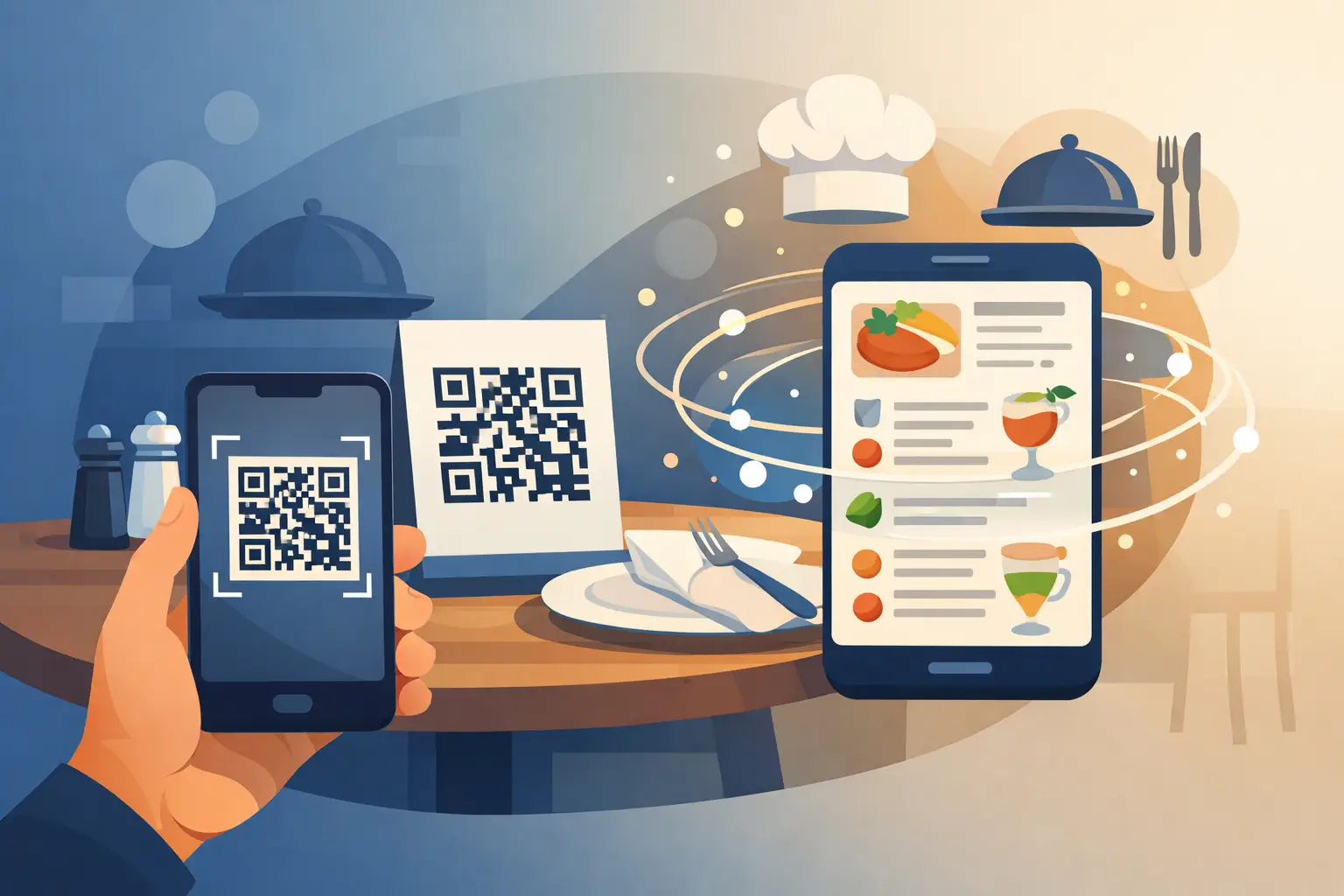
A QR code for a restaurant menu has one job: get a guest from the table to the right menu without making them wait, search, or download anything. If the scan leads to a slow page, tiny text, an expired special, or a confusing PDF, it adds friction instead of saving time.

For restaurants, the best setup is rarely the most complicated one. It is a clear code, placed where guests expect it, linked to a mobile-friendly menu that staff can keep current. That makes it useful for quick-service counters, bars, food trucks, dining rooms, takeout bags, and hotel room service alike.

Start with the menu destination

Start with the menu destination

Before generating a QR code, decide exactly where it should send people. The code can point to a menu page on your website, an online ordering page, a hosted PDF, or a digital menu platform. The right choice depends on how often your menu changes and what you want guests to do after reading it.

A website menu page is usually the strongest option for restaurants that update specials, prices, availability, or hours regularly. It is easier to read on a phone than a standard PDF and can include ordering, reservations, location details, dietary information, and current promotions.

A PDF can work for a short, stable menu, especially when it is designed for mobile screens. But many restaurant PDFs were made for letter-size printing. On a phone, guests need to pinch, zoom, and scroll in several directions. That is not a good table experience.

If the goal is online ordering, link the QR code directly to the ordering page rather than making guests navigate through a homepage first. Every extra tap is a chance for someone to give up or ask a staff member for help.

Keep the mobile menu easy to read

Guests often scan while standing at a counter, sitting in a dim booth, or deciding quickly with a group. Your menu should load fast and use readable type, clear section labels, and enough spacing between items. Prices and descriptions need to be visible without zooming.

Do not make a digital menu feel like a filing cabinet. Put food and drinks first. Save the restaurant story, newsletter signup, and social media links for lower on the page. A guest scanning at the table wants to know what they can order now.

Create a QR code that scans reliably

Create a QR code that scans reliably

The destination matters most, but the code itself still needs to be usable. Generate the code from the final URL, then download it in a format that works for where you will use it. A high-resolution PNG is often fine for small printed table materials. An SVG is a better choice for larger signs, window decals, banners, or anything that may be resized.

QRColor can create a scannable code from your menu URL in a few steps. Once you have the file, keep an original copy in a shared folder so your team can reuse the same code consistently across print and promotional materials.

Black on white is the safest design choice. You can use brand colors, but contrast must remain strong. A light code on a dark background can work if it is tested carefully. Avoid low-contrast colors, busy patterns behind the code, glossy surfaces that create glare, and designs that crowd the code too closely.

Leave a clear margin around the QR code. This blank area helps phone cameras recognize its edges. Do not place text, logos, borders, or decorative graphics right against it.

Size it for the distance

A small tabletop code can be compact because guests scan it from close range. A code on a wall, front window, or drive-thru sign needs to be much larger. As a practical rule, the farther away a person stands, the bigger the code should be.

Test the real printed version, not just the image on your computer. Scan it with more than one phone, in normal restaurant lighting, from the distance where guests will actually see it. A code that works perfectly on a bright desktop screen may fail on a laminated tent card under low lighting.

Put the code where it helps the guest

Put the code where it helps the guest

Placement should follow the customer journey. At a quick-service counter, place the code near the line or register so guests can decide before ordering. At a full-service table, put it on the table tent, check presenter, or menu cover. For takeout, add it to packaging so customers can find your menu again later.

The code should always have a short instruction beside it. “Scan to view the menu” is usually enough. If it leads to ordering, say so: “Scan to order pickup.” A QR code without context can look like a random graphic, especially to guests who are less familiar with scanning.

For table service, do not assume every guest wants to use a phone. Keep printed menus available when practical. QR menus reduce printing and make updates easier, but they should not create a barrier for guests with limited battery life, poor connectivity, accessibility needs, or a simple preference for paper.

That trade-off matters. A QR code can support service, but it should not replace hospitality. Staff should be ready to answer questions, provide a printed menu, and explain how to access the digital version if needed.

Make updates without confusing guests

Make updates without confusing guests

A restaurant menu changes for many reasons: seasonal dishes, unavailable ingredients, price adjustments, happy hour, catering, and special events. Your QR code should point to a URL that stays the same even when the menu content changes.

For example, a code linked to a permanent menu page lets you update that page whenever needed. Guests keep using the same printed code. If you link directly to a one-time PDF file and later replace it with a new file address, you may need to reprint every table card and window sign.

This is one reason to avoid putting a temporary menu URL into thousands of printed pieces. Print is expensive, and restaurant operations move quickly. A stable destination gives you room to adjust without starting over.

Build trust with clear information

Build trust with clear information

A menu QR code is more likely to be scanned when it looks intentional and the destination matches the restaurant. Use your restaurant name near the code. If possible, include your website address in small text as an alternative for guests who prefer to type it.

The page should clearly show that it belongs to your business. Include your name, logo, location, and current hours where appropriate. If the code opens a third-party ordering service, make that path feel expected rather than surprising.

Be careful with menus that require too much personal information. A guest should be able to view food and drink options without immediately creating an account, sharing a phone number, or accepting a string of pop-ups. Ordering systems may need customer details later, but menu browsing should remain simple.

Check the details before you print

Check the details before you print

A five-minute test can prevent a costly reprint. Scan the code on iPhone and Android devices. Check that the page opens without a login, works on both cellular data and Wi-Fi, and displays the current menu. Review prices, allergens, modifiers, taxes or service fees where relevant, and ordering hours.

Also test for common service situations. What happens if an item sells out? Can a guest still see the rest of the menu? Does the ordering page make clear whether pickup, delivery, or dine-in is available? Does the code still work after a website update?

Repeat this check whenever you change your website, ordering provider, or menu structure. The QR image may remain unchanged, but a broken destination creates the same poor experience as a broken code.

Use one code with a clear purpose

Use one code with a clear purpose

It can be tempting to add separate codes for the menu, reviews, Instagram, loyalty, Wi-Fi, events, and catering. On a small table card, that can quickly become visual clutter. Start with the action most useful at that moment.

At a dining table, that is usually the menu. On a takeout bag, it may be reordering or loyalty. At a catering event, it may be your catering menu or inquiry page. Give each placement a purpose, and write the instruction to match.

A good restaurant QR code is almost invisible when it works well. Guests scan, find what they need, and move on to ordering. Keep the path short, keep the menu current, and test the printed code before it reaches the table.

How a QR Code for Your Restaurant Menu Works

Eureka Seven

A QR code for a restaurant menu has one job: get a guest from the table to the right menu without making them wait, search, or download anything. If the scan leads to a slow page, tiny text, an expired special, or a confusing PDF, it adds friction instead of saving time.

For restaurants, the best setup is rarely the most complicated one. It is a clear code, placed where guests expect it, linked to a mobile-friendly menu that staff can keep current. That makes it useful for quick-service counters, bars, food trucks, dining rooms, takeout bags, and hotel room service alike.

Start with the menu destination

Start with the menu destination

Before generating a QR code, decide exactly where it should send people. The code can point to a menu page on your website, an online ordering page, a hosted PDF, or a digital menu platform. The right choice depends on how often your menu changes and what you want guests to do after reading it.

A website menu page is usually the strongest option for restaurants that update specials, prices, availability, or hours regularly. It is easier to read on a phone than a standard PDF and can include ordering, reservations, location details, dietary information, and current promotions.

A PDF can work for a short, stable menu, especially when it is designed for mobile screens. But many restaurant PDFs were made for letter-size printing. On a phone, guests need to pinch, zoom, and scroll in several directions. That is not a good table experience.

If the goal is online ordering, link the QR code directly to the ordering page rather than making guests navigate through a homepage first. Every extra tap is a chance for someone to give up or ask a staff member for help.

Keep the mobile menu easy to read

Guests often scan while standing at a counter, sitting in a dim booth, or deciding quickly with a group. Your menu should load fast and use readable type, clear section labels, and enough spacing between items. Prices and descriptions need to be visible without zooming.

Do not make a digital menu feel like a filing cabinet. Put food and drinks first. Save the restaurant story, newsletter signup, and social media links for lower on the page. A guest scanning at the table wants to know what they can order now.

Create a QR code that scans reliably

Create a QR code that scans reliably

The destination matters most, but the code itself still needs to be usable. Generate the code from the final URL, then download it in a format that works for where you will use it. A high-resolution PNG is often fine for small printed table materials. An SVG is a better choice for larger signs, window decals, banners, or anything that may be resized.

QRColor can create a scannable code from your menu URL in a few steps. Once you have the file, keep an original copy in a shared folder so your team can reuse the same code consistently across print and promotional materials.

Black on white is the safest design choice. You can use brand colors, but contrast must remain strong. A light code on a dark background can work if it is tested carefully. Avoid low-contrast colors, busy patterns behind the code, glossy surfaces that create glare, and designs that crowd the code too closely.

Leave a clear margin around the QR code. This blank area helps phone cameras recognize its edges. Do not place text, logos, borders, or decorative graphics right against it.

Size it for the distance

A small tabletop code can be compact because guests scan it from close range. A code on a wall, front window, or drive-thru sign needs to be much larger. As a practical rule, the farther away a person stands, the bigger the code should be.

Test the real printed version, not just the image on your computer. Scan it with more than one phone, in normal restaurant lighting, from the distance where guests will actually see it. A code that works perfectly on a bright desktop screen may fail on a laminated tent card under low lighting.

Put the code where it helps the guest

Put the code where it helps the guest

Placement should follow the customer journey. At a quick-service counter, place the code near the line or register so guests can decide before ordering. At a full-service table, put it on the table tent, check presenter, or menu cover. For takeout, add it to packaging so customers can find your menu again later.

The code should always have a short instruction beside it. “Scan to view the menu” is usually enough. If it leads to ordering, say so: “Scan to order pickup.” A QR code without context can look like a random graphic, especially to guests who are less familiar with scanning.

For table service, do not assume every guest wants to use a phone. Keep printed menus available when practical. QR menus reduce printing and make updates easier, but they should not create a barrier for guests with limited battery life, poor connectivity, accessibility needs, or a simple preference for paper.

That trade-off matters. A QR code can support service, but it should not replace hospitality. Staff should be ready to answer questions, provide a printed menu, and explain how to access the digital version if needed.

Make updates without confusing guests

Make updates without confusing guests

A restaurant menu changes for many reasons: seasonal dishes, unavailable ingredients, price adjustments, happy hour, catering, and special events. Your QR code should point to a URL that stays the same even when the menu content changes.

For example, a code linked to a permanent menu page lets you update that page whenever needed. Guests keep using the same printed code. If you link directly to a one-time PDF file and later replace it with a new file address, you may need to reprint every table card and window sign.

This is one reason to avoid putting a temporary menu URL into thousands of printed pieces. Print is expensive, and restaurant operations move quickly. A stable destination gives you room to adjust without starting over.

Build trust with clear information

Build trust with clear information

A menu QR code is more likely to be scanned when it looks intentional and the destination matches the restaurant. Use your restaurant name near the code. If possible, include your website address in small text as an alternative for guests who prefer to type it.

The page should clearly show that it belongs to your business. Include your name, logo, location, and current hours where appropriate. If the code opens a third-party ordering service, make that path feel expected rather than surprising.

Be careful with menus that require too much personal information. A guest should be able to view food and drink options without immediately creating an account, sharing a phone number, or accepting a string of pop-ups. Ordering systems may need customer details later, but menu browsing should remain simple.

Check the details before you print

Check the details before you print

A five-minute test can prevent a costly reprint. Scan the code on iPhone and Android devices. Check that the page opens without a login, works on both cellular data and Wi-Fi, and displays the current menu. Review prices, allergens, modifiers, taxes or service fees where relevant, and ordering hours.

Also test for common service situations. What happens if an item sells out? Can a guest still see the rest of the menu? Does the ordering page make clear whether pickup, delivery, or dine-in is available? Does the code still work after a website update?

Repeat this check whenever you change your website, ordering provider, or menu structure. The QR image may remain unchanged, but a broken destination creates the same poor experience as a broken code.

Use one code with a clear purpose

Use one code with a clear purpose

It can be tempting to add separate codes for the menu, reviews, Instagram, loyalty, Wi-Fi, events, and catering. On a small table card, that can quickly become visual clutter. Start with the action most useful at that moment.

At a dining table, that is usually the menu. On a takeout bag, it may be reordering or loyalty. At a catering event, it may be your catering menu or inquiry page. Give each placement a purpose, and write the instruction to match.

A good restaurant QR code is almost invisible when it works well. Guests scan, find what they need, and move on to ordering. Keep the path short, keep the menu current, and test the printed code before it reaches the table.