How to Create QR Code From URL in Minutes

Eureka Seven

How to Create QR Code From URL in Minutes

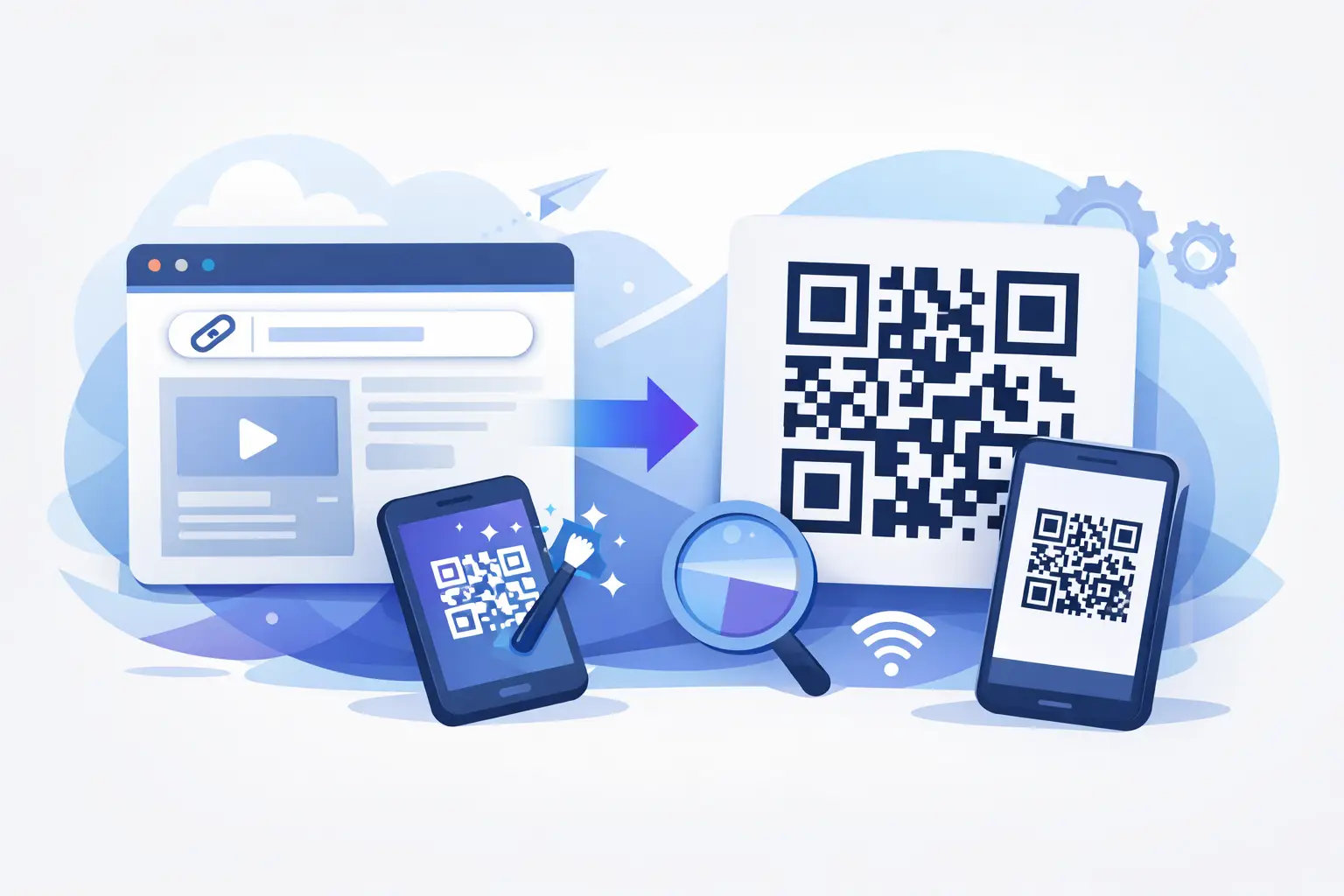
A long web address is easy to lose on a flyer, receipt, product label, or storefront sign. When you create QR code from URL, you give people a direct path from something they can see to the page you want them to visit. One scan can open your website, online menu, booking page, social profile, portfolio, or a specific promotion.

For a small business or creator, that simplicity matters. A QR code removes the need for customers to type a URL correctly, search for your business, or switch between apps. The best QR codes are not complicated. They are placed where someone has a reason to scan and lead to a page that delivers on the promise.

Why create a QR code from a URL?

Why create a QR code from a URL?

A URL QR code stores a web address in a scannable square pattern. Most current phone cameras can read it without a separate app. The customer points their camera at the code, taps the prompt, and lands on your destination.

This is useful whenever your audience is moving from an offline item to online information. A restaurant can place a code on a table tent that opens its menu. A realtor can add one to a property sign. A fitness instructor can use one on a poster to send people to a class schedule. A creator can add one to a business card that opens a portfolio or social profile.

The QR code itself is only the shortcut. The destination matters just as much. If someone scans a code expecting a menu and reaches a generic homepage, they may leave. Use the most relevant page possible.

Start with the right URL

Start with the right URL

Before generating anything, open the page yourself. Confirm that it loads quickly on a phone, uses the correct information, and does not require visitors to hunt for the next step.

Copy the full URL from the browser address bar. Include the complete address, including https:// when it appears. Short, clean URLs tend to be easier to manage, but the scanner does not care whether your link is short or long. What matters is that it resolves properly.

Avoid linking to pages that are temporary unless the QR code will also be temporary. For example, a code printed on 5,000 product inserts should not point to a sale page that disappears next month. Send it to a durable product page, signup page, or page that you plan to maintain.

Match the destination to the placement

Think about where the code will appear and what a person wants at that moment. A code on product packaging could lead to setup instructions, warranty registration, or product details. A code on a conference badge may work better when it opens a contact page than when it opens a general website.

For social media, link directly to the profile or content you want to promote. For printed promotions, a focused landing page usually performs better than a homepage because it gives visitors one clear action, such as viewing an offer, booking a service, or joining an email list.

How to create a QR code from URL

How to create a QR code from URL

The process is straightforward. QRColor is designed for this type of quick, practical link sharing.

1. Paste your web address

Choose the URL option in a QR code generator and paste the complete address into the input field. Check for an accidental space at the beginning or end. A single missing character can send scans to an error page.

If you are sharing a campaign page, test the URL on both desktop and mobile before you continue. A QR code may scan perfectly while the linked page still frustrates visitors because it is slow, outdated, or hard to use on a phone.

2. Choose a clear design

A standard black-and-white code is often the safest choice. It has high contrast and works well across common camera apps. You can add color to match your brand, but maintain a strong difference between the dark code pattern and the light background.

Do not use pale colors, busy photo backgrounds, or low-contrast combinations. A code may look stylish on screen but fail in normal lighting or after printing. If you customize it with a logo or color, use a sensible level of error correction and test the finished version rather than assuming it will work.

Leave a clear blank border around the code. This area, often called the quiet zone, helps cameras recognize the pattern. Cropping the code too tightly or placing it against visual clutter can make scanning less reliable.

3. Download the appropriate file format

For digital posts, presentations, email graphics, and small web uses, a PNG is usually practical. For large print items such as banners, trade show signs, window decals, or vehicle graphics, a vector format such as SVG is often the better option because it can scale without becoming blurry.

Size matters. A QR code printed too small can be difficult to scan, especially from a distance. A code on a business card needs to be legible at close range. A code on a poster needs to be larger because people will scan it from farther away. Keep the code sharp, with no stretched edges or compression artifacts.

4. Test before you publish

Scan the code with your own phone. Then try it with a second phone if possible. Test under the lighting and at the distance where real people will use it.

Make sure the scan opens the intended URL, not an older draft or a redirected page. Check whether the page looks good on a mobile screen and whether the next action is obvious. This takes less than a minute and can prevent an expensive reprint.

Where URL QR codes work best

Where URL QR codes work best

A QR code needs context. People are more likely to scan when they understand what they will get. Instead of printing a code by itself, add a short instruction such as “View the menu,” “Book an appointment,” “See product details,” or “Follow us for updates.”

Common placements include:

  • Business cards that open a portfolio, booking page, or contact form
  • Storefront windows and signs that share hours, directions, or current offers
  • Menus, table tents, and receipts that lead to ordering, reviews, or loyalty programs
  • Product packaging that provides instructions, registration, or support information
  • Flyers and event materials that open tickets, schedules, or event details

The call to action should be specific. “Scan me” is better than nothing, but “Scan to see available appointments” tells a customer why scanning is worth their time.

Static versus editable destinations

Static versus editable destinations

A basic URL QR code contains the web address you enter. If the destination URL changes later, a printed code with the old address will still point to the old address. This is not a problem when the linked page is stable, such as your main website or a permanent profile.

If you expect to change destinations frequently, plan ahead. You might use a URL on your own website that you can redirect later, such as a short campaign path that always remains under your control. This gives you more flexibility while keeping the printed QR code unchanged.

There is a trade-off. A direct URL is simple and transparent. A redirect can be useful for changing campaigns, but it adds another step that must be maintained. Choose the approach that fits the life of the printed material, not just the current promotion.

Printing tips that prevent scan failures

Printing tips that prevent scan failures

Print quality can make or break an otherwise correct QR code. Keep the code square. Do not stretch it into a rectangle, place it over a patterned image, or add effects that soften the edges. A crisp code on a plain, light background is the dependable choice.

Consider the scanning distance. A small code on a countertop display can work well because the customer stands nearby. A code on a roadside sign needs much more size and may still be impractical if people cannot safely stop and scan. Placement should be convenient, not just visible.

Also think about the condition of the surface. Glossy packaging can create glare. Folded brochures can place the code across a crease. Outdoor signage can fade or get dirty. Test a physical sample when the QR code is part of an important print run.

Make the scan worth it

Make the scan worth it

People scan QR codes when the outcome feels useful. Give them a fast-loading page, a clear offer, and one obvious next step. If the code is on a coffee shop counter, opening the menu or rewards signup makes sense. If it is on a service vehicle, opening a quote request form is more useful than making visitors search through a homepage.

A simple QR code can do a lot of practical work when the destination is current, the design is easy to scan, and the reason to scan is clear. Put it where people already have interest, then let the link do its job.

How to Create QR Code From URL in Minutes

Eureka Seven

A long web address is easy to lose on a flyer, receipt, product label, or storefront sign. When you create QR code from URL, you give people a direct path from something they can see to the page you want them to visit. One scan can open your website, online menu, booking page, social profile, portfolio, or a specific promotion.

For a small business or creator, that simplicity matters. A QR code removes the need for customers to type a URL correctly, search for your business, or switch between apps. The best QR codes are not complicated. They are placed where someone has a reason to scan and lead to a page that delivers on the promise.

Why create a QR code from a URL?

Why create a QR code from a URL?

A URL QR code stores a web address in a scannable square pattern. Most current phone cameras can read it without a separate app. The customer points their camera at the code, taps the prompt, and lands on your destination.

This is useful whenever your audience is moving from an offline item to online information. A restaurant can place a code on a table tent that opens its menu. A realtor can add one to a property sign. A fitness instructor can use one on a poster to send people to a class schedule. A creator can add one to a business card that opens a portfolio or social profile.

The QR code itself is only the shortcut. The destination matters just as much. If someone scans a code expecting a menu and reaches a generic homepage, they may leave. Use the most relevant page possible.

Start with the right URL

Start with the right URL

Before generating anything, open the page yourself. Confirm that it loads quickly on a phone, uses the correct information, and does not require visitors to hunt for the next step.

Copy the full URL from the browser address bar. Include the complete address, including https:// when it appears. Short, clean URLs tend to be easier to manage, but the scanner does not care whether your link is short or long. What matters is that it resolves properly.

Avoid linking to pages that are temporary unless the QR code will also be temporary. For example, a code printed on 5,000 product inserts should not point to a sale page that disappears next month. Send it to a durable product page, signup page, or page that you plan to maintain.

Match the destination to the placement

Think about where the code will appear and what a person wants at that moment. A code on product packaging could lead to setup instructions, warranty registration, or product details. A code on a conference badge may work better when it opens a contact page than when it opens a general website.

For social media, link directly to the profile or content you want to promote. For printed promotions, a focused landing page usually performs better than a homepage because it gives visitors one clear action, such as viewing an offer, booking a service, or joining an email list.

How to create a QR code from URL

How to create a QR code from URL

The process is straightforward. QRColor is designed for this type of quick, practical link sharing.

1. Paste your web address

Choose the URL option in a QR code generator and paste the complete address into the input field. Check for an accidental space at the beginning or end. A single missing character can send scans to an error page.

If you are sharing a campaign page, test the URL on both desktop and mobile before you continue. A QR code may scan perfectly while the linked page still frustrates visitors because it is slow, outdated, or hard to use on a phone.

2. Choose a clear design

A standard black-and-white code is often the safest choice. It has high contrast and works well across common camera apps. You can add color to match your brand, but maintain a strong difference between the dark code pattern and the light background.

Do not use pale colors, busy photo backgrounds, or low-contrast combinations. A code may look stylish on screen but fail in normal lighting or after printing. If you customize it with a logo or color, use a sensible level of error correction and test the finished version rather than assuming it will work.

Leave a clear blank border around the code. This area, often called the quiet zone, helps cameras recognize the pattern. Cropping the code too tightly or placing it against visual clutter can make scanning less reliable.

3. Download the appropriate file format

For digital posts, presentations, email graphics, and small web uses, a PNG is usually practical. For large print items such as banners, trade show signs, window decals, or vehicle graphics, a vector format such as SVG is often the better option because it can scale without becoming blurry.

Size matters. A QR code printed too small can be difficult to scan, especially from a distance. A code on a business card needs to be legible at close range. A code on a poster needs to be larger because people will scan it from farther away. Keep the code sharp, with no stretched edges or compression artifacts.

4. Test before you publish

Scan the code with your own phone. Then try it with a second phone if possible. Test under the lighting and at the distance where real people will use it.

Make sure the scan opens the intended URL, not an older draft or a redirected page. Check whether the page looks good on a mobile screen and whether the next action is obvious. This takes less than a minute and can prevent an expensive reprint.

Where URL QR codes work best

Where URL QR codes work best

A QR code needs context. People are more likely to scan when they understand what they will get. Instead of printing a code by itself, add a short instruction such as “View the menu,” “Book an appointment,” “See product details,” or “Follow us for updates.”

Common placements include:

  • Business cards that open a portfolio, booking page, or contact form
  • Storefront windows and signs that share hours, directions, or current offers
  • Menus, table tents, and receipts that lead to ordering, reviews, or loyalty programs
  • Product packaging that provides instructions, registration, or support information
  • Flyers and event materials that open tickets, schedules, or event details

The call to action should be specific. “Scan me” is better than nothing, but “Scan to see available appointments” tells a customer why scanning is worth their time.

Static versus editable destinations

Static versus editable destinations

A basic URL QR code contains the web address you enter. If the destination URL changes later, a printed code with the old address will still point to the old address. This is not a problem when the linked page is stable, such as your main website or a permanent profile.

If you expect to change destinations frequently, plan ahead. You might use a URL on your own website that you can redirect later, such as a short campaign path that always remains under your control. This gives you more flexibility while keeping the printed QR code unchanged.

There is a trade-off. A direct URL is simple and transparent. A redirect can be useful for changing campaigns, but it adds another step that must be maintained. Choose the approach that fits the life of the printed material, not just the current promotion.

Printing tips that prevent scan failures

Printing tips that prevent scan failures

Print quality can make or break an otherwise correct QR code. Keep the code square. Do not stretch it into a rectangle, place it over a patterned image, or add effects that soften the edges. A crisp code on a plain, light background is the dependable choice.

Consider the scanning distance. A small code on a countertop display can work well because the customer stands nearby. A code on a roadside sign needs much more size and may still be impractical if people cannot safely stop and scan. Placement should be convenient, not just visible.

Also think about the condition of the surface. Glossy packaging can create glare. Folded brochures can place the code across a crease. Outdoor signage can fade or get dirty. Test a physical sample when the QR code is part of an important print run.

Make the scan worth it

Make the scan worth it

People scan QR codes when the outcome feels useful. Give them a fast-loading page, a clear offer, and one obvious next step. If the code is on a coffee shop counter, opening the menu or rewards signup makes sense. If it is on a service vehicle, opening a quote request form is more useful than making visitors search through a homepage.

A simple QR code can do a lot of practical work when the destination is current, the design is easy to scan, and the reason to scan is clear. Put it where people already have interest, then let the link do its job.